
Boost Outreach with an AI Sales Email Generator for Higher Response Rates
An AI sales email generator is a smart tool that writes personalized sales emails for you. It’s not just about filling in blanks on a template. Instead, it digs into prospect data, what’s happening at their company, and even real-time buying signals to write messages that actually feel relevant and get a response.
From Paper Maps to a Sales GPS

Think of it like the difference between an old paper map and the GPS on your phone. The paper map shows one static route. It can’t tell you about a sudden traffic jam or a new, faster shortcut. That’s exactly how old-school cold emailing works—you blast the same generic message to a huge list and just hope someone, somewhere, bites.
An AI sales email generator is your sales team’s GPS. It’s an intelligent co-pilot for your Sales Development Reps (SDRs), constantly analyzing data to find the quickest, most effective path to a real conversation.
What Problem Are We Actually Solving Here?
Let’s be honest: SDRs spend way too much of their day on manual tasks. They’re jumping between LinkedIn profiles, company news feeds, and their email drafts, trying to find one little nugget of information to make their message stand out. It’s slow, it’s draining, and it’s nearly impossible to do at scale.
The real issue is that the time they put in doesn't match the results they get out. Reps get stuck doing low-impact work, which leads to a few common problems:
- Wasted Time: Hours get eaten up by research and writing instead of actually talking to potential customers.
- Low Engagement: Generic-sounding emails land with a thud, leading to dismal open and reply rates that crush team morale.
- Mixed Messaging: Without a consistent process, every SDR ends up with their own style, and your company’s voice gets lost in the noise.
Making the Shift from Generic Blasts to Smart Conversations
A good AI sales email generator does more than just spit out words. It connects the dots between different pieces of information to create relevance, and it does it for every single prospect. It’s not just giving you a route; it’s analyzing real-time signals—like a prospect checking out your pricing page or their company landing a new round of funding—to suggest the perfect message for that specific moment.
The market for these tools is growing fast because businesses are seeing real results. Outreach that’s personalized with these kinds of signals is getting 15–25% reply rates. Compare that to the typical 3–5% for standard cold emails, and you’re looking at a potential 5x jump in engagement. You can dig into the numbers behind this shift in the 2026 State of AI Sales Prospecting report.
This table shows the practical difference in how teams operate with and without this technology.
Traditional Outreach vs AI-Powered Outreach
| Attribute | Traditional Cold Email | AI Sales Email Generator |
|---|---|---|
| Personalization | Manual, one-off research; often generic | Automated, deep personalization based on real-time data |
| Productivity | Low; hours spent on research and writing | High; reps focus on engaging warm leads, not drafting |
| Reply Rates | Typically 3-5% | Often 15-25% with signal-based outreach |
| Messaging | Inconsistent across the team | Consistent, on-brand, and optimized for performance |
| Scalability | Extremely difficult to scale personalization | Easily scales relevant messaging across thousands of contacts |
The difference is clear. While traditional outreach often feels like shouting into a void, AI-powered outreach is about starting targeted, intelligent conversations. This is why these generators have become an essential piece of the modern sales toolkit, directly solving the long-standing frustrations of outbound sales.
To see the bigger picture, it helps to understand how these tools are evolving into a complete AI sales agent. These systems are fundamentally changing how top-performing sales teams work, turning what was once a manual art form into a science that scales.
The Difference Between Writing and Executing

The market is flooded with tools that can write an email. It’s a solved problem. From general-purpose AI assistants to features tacked onto marketing platforms, generating text is no longer the bottleneck. But this has created a new kind of confusion where sales leaders mistake content creation for actual sales execution.
A basic AI writer is like a calculator. You give it an input—a prompt—and it spits out a function—a block of text. While that's helpful, it doesn't solve the core operational headaches that drag down sales development teams.
True sales execution is about closing the loop. It’s not just about what an email says, but whether it’s the right message for the right person at the right time. And just as important, making sure every single action is tracked flawlessly. An elite ai sales email generator isn’t just a writer; it’s an execution engine. This engine is built on three core pillars that set it miles apart from simple content tools.
Pillar 1: Deep Contextual Personalization
Most AI writers churn out emails that sound plausible but feel completely hollow. They might pull a company name and job title, but they almost always miss the "why now?"—the one thing that actually grabs a prospect's attention. This is where deep contextual personalization changes the entire game.
A real execution engine doesn't just wait for a prompt. It actively pulls in data from multiple sources to understand the complete picture:
- Account Context: It knows the prospect’s industry, company size, and the specific business challenges tied to them.
- Persona Context: It understands you're emailing a VP of Engineering, not a Marketing Manager, and adjusts the language, pain points, and value props on the fly.
- Real-Time Signals: Most critically, it connects outreach to timely buying signals, like a recent funding round, a visit to your pricing page, or a key executive hire.
This multi-layered context is the difference between an email that says, "I see you work at Company X," and one that says, "I saw your team is hiring five new account executives, which often puts a major strain on data hygiene in Salesforce." The first is noise; the second starts a real conversation.
Pillar 2: Sequence-Ready Outputs
Another huge pitfall of basic AI writers is that they produce long, rambling emails that are totally wrong for modern outbound. Sales is a multi-touch process. Your initial outreach needs to be short, direct, and built to fit into a broader sequence.
A true execution-focused ai sales email generator is designed for this reality. It doesn’t just write one email; it crafts sequence-ready components.
Generating the perfect email draft is only 10% of the battle. The other 90% involves delivering the right message at the right moment and ensuring every action is perfectly logged in your system of record. Without execution, content is just a document.
This means the tool should generate concise, punchy messages and subject lines built for a multi-step cadence. The output isn't a one-off email blast but the first building block in a planned series of interactions. The goal is to get a quick response or move the prospect to the next touchpoint, not to send them a novel they’ll never read.
Pillar 3: Native CRM Integration
This last pillar is completely non-negotiable for any serious sales team. If your AI tool operates in a separate browser tab, outside of your CRM, it’s doomed to fail. Why? Because it shatters the workflow your reps live in all day and creates a data black hole.
A top-tier tool is built with native CRM integration, usually for platforms like Salesforce or HubSpot. This isn't just about a simple API connection; it means the entire workflow happens inside the CRM.
| Feature Comparison | Basic AI Writer | Execution Engine (CRM-Native) |
|---|---|---|
| Workflow Location | Separate tab or application | Directly within Salesforce/HubSpot records |
| Activity Logging | Manual copy-pasting required | Automatic logging of emails, calls, and outcomes |
| Data Hygiene | Poor; creates data silos | Excellent; maintains a clean, single source of truth |
| User Adoption | Low; reps hate switching tabs | High; works within existing rep habits |
When a sales rep can click a contact in Salesforce, generate a contextual email, send it, and have the activity logged automatically without ever leaving the page, you’ve hit peak workflow efficiency. This is the ultimate litmus test: does the tool make a rep's job easier inside their primary system, or does it add another tedious step? An execution engine removes steps, making it an indispensable part of the sales process.
How to Weave AI Into Your SDR Workflow
Let's move this conversation from theory to reality. Bringing an AI sales email generator into your team’s daily routine isn't about just adding another tool to the pile. It’s about embedding real intelligence directly into the processes they already use. The goal is to create a seamless flow from a buyer "Signal" straight to "Execution," finally solving that nagging "what do I do next?" problem that stalls out so many sales reps.
A truly effective setup automates the grunt work and steers reps toward the actions that actually matter. It all starts with a critical buyer signal—maybe a prospect just visited your pricing page, or their company posted a job for a new marketing director. That signal shouldn't just get buried in a report. It should instantly trigger a prioritized task for an SDR.
And here’s the key: the best systems drop this task right into the SDR’s main workspace, which for most teams is their CRM. Instead of a vague "follow up" reminder, the task is loaded with context. It tells the rep exactly why this specific prospect is a priority right now. This is how you start turning random activity into a smart, structured outbound strategy.
From a Prioritized Task to Instant Action
Okay, so the task shows up. What happens next? This is where a powerful, CRM-native AI sales email generator really proves its worth. The SDR clicks the task right inside of Salesforce or HubSpot, and the AI immediately goes to work. It doesn't just pop open a blank email draft; it crafts a highly relevant message on the spot.
Because the AI is already connected to both your CRM and the specific signal that created the task, it understands the full story. The email it generates isn't some generic template. It’s a sharp, relevant message that directly references the signal that caught your attention.
- For that pricing page visit: "Saw you were exploring our advanced features—teams often dig into that tier when they're hitting a wall with [common pain point]."
- For that new executive hire: "Congrats on bringing on a new VP of Sales. When companies make that move, they're usually laser-focused on scaling their outbound team quickly."
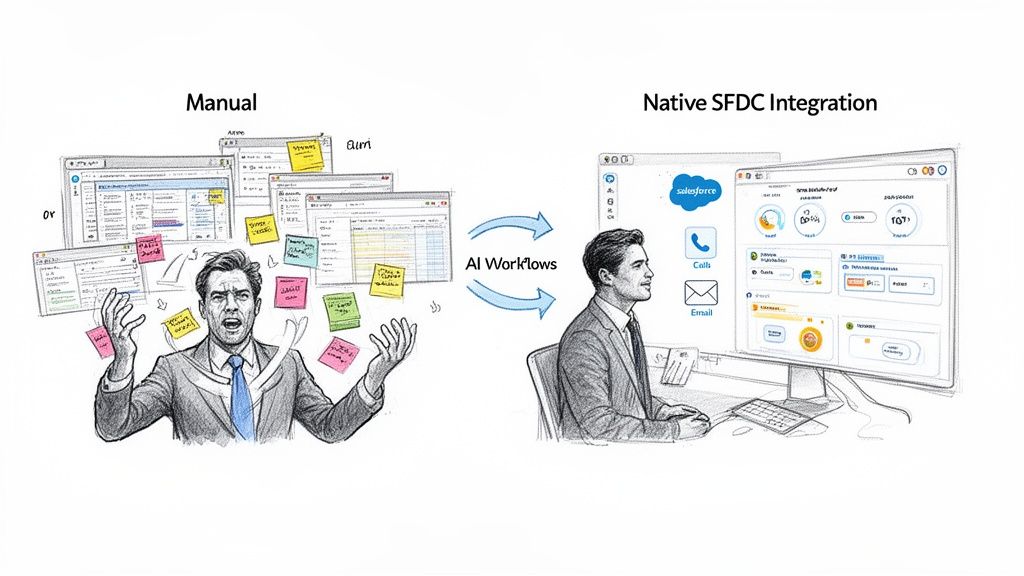
Think about how different this is from the old way. Without an integrated AI, the SDR would have to hunt down the prospect's info, try to find a hook, and then stare at a blank screen while drafting an email. That's a 15-20 minute process for a single lead. With an execution engine, it’s done in seconds.
This screenshot shows what a prioritized task list can look like right inside the CRM. It gives reps a clear roadmap for their day.
The big idea here is that the workflow starts with a clear, prioritized action. We’re taking the guesswork and cognitive load off the SDR’s shoulders so they can just focus on what they do best: executing.
The same click-to-execute principle applies to making calls. The AI can instantly generate a prep sheet with key talking points, recent company news, and likely objections. This arms the rep to have a much smarter conversation, whether they choose to email or dial first.
Closing the Loop with Automatic Logging
The final—and arguably most critical—piece is closing the loop. After an SDR sends that AI-generated email or makes a call, the system must automatically log the activity and its outcome right back into the CRM. This is a massive point of failure for tools that live in a separate browser tab.
Manual activity logging is the enemy of good CRM data and accurate reporting. One study found that sales reps spend an average of 4.5 hours per week on manual data entry. That's time they could be using to actually sell. An integrated system gives them that time back.
When an AI sales email generator is truly baked into the workflow, every single action is tracked without the rep lifting a finger. This creates a perfect, unblemished data trail.
A Tale of Two Logging Methods
| Logging Method | Manual (Separate Tools) | Automated (CRM-Native) |
|---|---|---|
| SDR Action | Rep has to copy-paste email text and manually log call notes. It’s a pain. | Email and call activities are logged automatically the second they happen. |
| Data Accuracy | Riddled with errors, skipped entries, and inconsistent notes. | Consistently accurate, with standardized dispositions and outcomes. |
| Adoption | Low. Reps inevitably skip this step when busy, creating huge data gaps. | 100% adoption. It’s part of the job, not an extra task. |
| Manager Visibility | Incomplete. Managers are flying blind, guessing what reps are doing. | Complete. Leaders get a real-time, accurate view of what’s working. |
This kind of seamless integration completely changes the SDR role. Reps stop being administrative workers drowning in research and data entry and become strategic operators executing informed plays. And for sales leaders? You finally get the clean, reliable data you need to measure what’s actually driving your pipeline.
To dig deeper into refining your outreach, you can find more valuable tips in our guide on cold email outreach best practices.
How to Choose the Right AI Sales Tool
Picking the right AI sales email generator is a make-or-break decision. It will directly affect everything from your reps’ daily productivity to the health of your sales pipeline. The market is flooded with tools that look great in a demo but fail to solve the real-world problems your team faces. To see past the slick marketing, you need a practical way to evaluate what really matters.
The single most important distinction is this: are you looking at a tool that just creates content, or one that actually drives your team to execute tasks within their existing workflow? This isn't a small feature difference—it’s a fundamental split in philosophy that will determine whether the tool gets used or gathers dust.
CRM-Native vs. Another Tab
First things first, where does the tool live? Many AI writers operate as standalone apps in a separate browser tab. This is a workflow killer, plain and simple. It forces reps to constantly jump back and forth, pulling them out of their CRM—like Salesforce or HubSpot—just to generate an email, then copy and paste the text back in.
This friction is the #1 reason for low user adoption. Your reps are measured on their activity and results, so any tool that adds clicks and slows them down will get ignored. In contrast, a CRM-native ai sales email generator is built to live right inside your CRM. Reps can generate and send emails, log calls, and complete tasks without ever leaving the contact or lead record they're working on.
A critical question for any vendor should be: “Can my reps execute their entire outreach motion—from task to email to call—without leaving their CRM screen?” If the answer is no, you are setting yourself up for a failed implementation.
Execution Engines vs. Content Generators
Next, you have to understand the tool’s core purpose. Is it just a content generator, or is it a true execution engine? A content generator is pretty straightforward: you give it a prompt, and it spits out text. It's a neat trick, but its usefulness is limited. The real work of figuring out who to email, why now, and what to do next still falls squarely on the sales rep's shoulders.
An execution engine is a different beast entirely. It connects buyer signals (like a job change or a website visit) to prioritized tasks, turning raw data into a clear "to-do" list for your team. It doesn't just write an email; it helps the SDR decide which prospect is worth their attention in the first place.
This is what that process looks like in practice. It's about turning a signal into a completed action.

The key takeaway is that an execution-focused tool doesn't start with a blank text box. It starts with a prioritized action, streamlining the entire sales motion from the initial signal all the way to the final outreach.
All-in-One Platforms vs. Point Solutions
Finally, think about whether you need another massive, all-in-one platform or a focused solution that does one job incredibly well. Many large sales engagement platforms are adding AI writing as a feature, but it's often a bolt-on. It rarely has the deep, CRM-native workflow needed to drive real efficiency gains.
A dedicated ai sales email generator that’s built as an execution engine actually complements these larger platforms. It solves the "first-mile" problem: creating a hyper-relevant, personalized message based on a timely signal. That perfectly crafted message can then be pushed into your sequencing tool, making the entire cadence more effective from the very first touch.
To help you cut through the vendor claims, here's a simple checklist to guide your evaluation. Use it to ask the right questions and figure out what a tool can really do for you.
AI Sales Tool Evaluation Checklist
| Evaluation Criteria | What to Look For | Why It Matters |
|---|---|---|
| Workflow | CRM-Native: Operates entirely inside Salesforce or HubSpot. | High user adoption; reps stay in their primary workspace. |
| Activity Logging | Automatic: Every email, call, and outcome is logged instantly. | Eliminates manual data entry and provides accurate reporting. |
| Core Function | Execution Engine: Turns signals into prioritized tasks and actions. | Solves the "what to do next" problem for reps. |
| Output Quality | Sequence-Ready: Creates short, relevant emails for multi-touch cadences. | Matches modern outbound best practices and improves reply rates. |
By focusing your evaluation on these practical differentiators, you can cut through the noise. You’ll be much better equipped to choose an ai sales email generator that actually empowers your reps, keeps your CRM data clean, and ultimately helps you build more pipeline.
Actionable Prompts for High-Impact Sales Emails

The real magic of an AI sales email generator comes alive in your prompts. Think of it like this: if you give a world-class chef vague directions, you'll get a decent but generic meal. But if you tell them exactly what ingredients to use and the feeling you want the dish to evoke, you get a masterpiece. The same goes for AI—the quality of your input directly dictates the quality of your output.
While some basic AI tools can feel like a guessing game, a true execution-first platform is built to understand sales context. The point isn’t to spend all your time writing the perfect prompt from scratch. Instead, you just need to feed the AI the key variables, and it will handle the heavy lifting of crafting a relevant, human-sounding message. This is how you generate emails that actually feel personal.
Prompt Example 1: The First Touch
Let’s get practical. Imagine a prospect just spent time on your pricing page. That's a huge buying signal, and your first email needs to be both fast and smart. Forget the generic "just checking in" message; a focused prompt can generate something far better.
The Context:
- Prospect: Sarah Jones, Head of Sales Ops at FinCorp
- Company: FinCorp, a 500-employee fintech company
- Signal: Visited the "Enterprise Plan" pricing page for 3 minutes.
- Pain Point: Mid-size fintech firms often struggle with CRM data hygiene as they scale.
The Prompt:
"Write a short, direct email to a Head of Sales Ops who just viewed our Enterprise pricing page. Acknowledge her role and company (FinCorp). Connect the pricing page visit to the common challenge of maintaining CRM data hygiene for scaling fintech teams. CTA is to ask for 15 minutes to discuss their current process."
See how that works? This specific prompt gives the AI all the puzzle pieces it needs to build a message that is timely, relevant, and shows you've done your homework.
Prompt Example 2: The Follow-Up
Now, what about a lead who went cold? Let's say a few weeks go by, and you see on LinkedIn that their company just announced a big funding round. That's the perfect trigger to re-engage.
- Prospect: David Chen, VP of Marketing at Innovate Inc.
- Signal: Innovate Inc. just announced a $20M Series B funding round.
- Pain Point: After a funding round, marketing teams are under immense pressure to show ROI and grow the pipeline.
The Prompt:
"Draft a concise follow-up email to a VP of Marketing. Congratulate him on Innovate Inc.'s recent Series B funding. Connect the new funding to the increased pressure on marketing to generate measurable pipeline. Offer to share a case study on how a similar company doubled their MQLs. CTA is a soft 'worth a look?'"
This prompt turns a cold follow-up into a timely, strategic touchpoint that speaks directly to a new and urgent business pressure.
Prompt Example 3: The Break-Up
Sometimes, you need to send one last, value-packed email before marking a lead as closed-lost. The "break-up" email should be polite but also create a little urgency. When choosing an AI sales email generator, it helps to understand the full landscape of the best cold email software so you know what's possible.
- Prospect: Maria Garcia, Director of Demand Gen
- History: Engaged with two previous emails but has been unresponsive for 3 weeks.
- Value Prop: Your tool saves demand gen teams ~10 hours per week on manual reporting.
The Prompt:
"Write a polite and professional break-up email for a Director of Demand Gen who has gone silent. Reference our previous conversations. Reiterate the core value prop: saving her team 10+ hours a week. State that this will be the last email and ask if closing their file is the right move. Keep it under 75 words."
These examples show that effective prompting isn't about becoming a prompt engineer. It’s about giving the AI specific business context so it can do what it does best. Getting this right will have a direct impact on your outreach quality and, most importantly, your reply rates. For more on this, check out our guide on creating compelling subject lines for sales emails.
Measuring the ROI of Your AI Sales Tool
Bringing an AI sales email generator into your tech stack isn't just another software expense. It's a strategic investment in the very heart of your revenue engine. For any VP of Sales or RevOps leader, the real question is simple: how do we measure the return?
Sure, higher reply rates are a great starting point, but they don't paint the whole picture. The true value of these tools shows up in core business outcomes—the kind that directly build your pipeline and sharpen your team's efficiency. To see the real impact, you have to look past surface-level engagement and focus on the numbers that matter.
Key Metrics That Prove Business Value
The best metrics are the ones that connect the dots between the tool's function and your bottom line. Here’s what successful sales organizations track to prove the value of their AI sales email generator:
- Meetings Booked Per SDR: This is the ultimate output for any outbound team. A great AI tool should directly lift the number of qualified meetings each rep sets, plain and simple. It helps them send better emails, faster.
- Pipeline Generated from AI-Assisted Outreach: How much pipeline value can you trace back to emails created with the AI tool? This ties the software directly to revenue and makes its contribution to the sales funnel undeniable.
- Reduced SDR Ramp Time: New hires often struggle to find their footing. An AI tool that guides them on what to say and who to reach out to can dramatically shorten that learning curve. Measure the time it takes a new rep to hit their first quota—you should see that window shrink.
- Improved CRM Data Hygiene: Automatic activity logging means no more manual data entry errors or missing information. This gives you far more reliable reporting and a cleaner CRM, an operational win that pays dividends for years.
The Visibility Advantage of a Native System
There’s a world of difference between a standalone AI writer and a CRM-native execution engine, especially when it comes to measuring ROI. A separate tool creates a data black hole. Reps copy and paste text, and activities are logged inconsistently, if at all, making it nearly impossible to attribute what's actually working.
A natively integrated system, on the other hand, gives you perfect visibility. Every email sent, every call made, and every outcome is automatically logged right inside your CRM. This creates a crystal-clear picture of your sales process. You can finally answer questions like, "Which email variants are booking the most meetings?" or "Which buyer signals lead to the highest conversion rates?" This is how you turn your outbound efforts into a measurable, scalable machine.
Automation in email-driven sales has become a dominant force for efficiency. Automated outreach now delivers an 18.5x efficiency multiplier compared to one-off campaigns. Despite representing only 2% of total email volume, automated emails are responsible for driving a remarkable 37% of all email-generated sales. You can explore more data on how automation impacts email-driven sales on GenesysGrowth.com.
Ultimately, measuring the return on your AI investment is about connecting those dots. When you focus on metrics like pipeline generated and SDR productivity, you reframe the tool not as a cost, but as a core driver of growth. For a deeper dive into this topic, check out our guide on how to calculate marketing ROI to apply similar principles to your sales tech stack.
Common Questions We Hear From Sales Teams
Got questions about putting an AI sales email generator to work? You're not alone. Here are the honest answers to the questions we hear most often from sales leaders, RevOps, and the reps on the front lines.
Will an AI Sales Email Generator Replace My SDRs?
Not a chance. In fact, it does the exact opposite—it makes them more effective. A good AI sales email generator takes on the most mind-numbing parts of the job, like digging through data for personalization hooks and drafting the same basic emails over and over.
This doesn't make your reps obsolete; it gives them back their most valuable asset: time. Instead of getting bogged down in repetitive work, they can focus on the activities that actually drive revenue. We're talking about deep personalization, navigating tricky objections, and having real, strategic conversations with high-value prospects. It helps your best people do what they do best, but better.
How Does This Work With Our Sales Engagement Platform?
Think of a modern AI tool as the "brains" that feeds your existing sales engagement platform. It works before your sequence even starts, solving the "what do I even say?" problem that stalls so many reps. It perfectly complements tools like Outreach or Salesloft.
The AI spots a key buying signal, flags it as a priority task for a rep, and then drafts the initial, highly relevant message. That perfectly crafted email can then be dropped right into your team's existing sequences. This way, you know your outreach is hitting the mark from the very first touchpoint.
Our Team Lives and Breathes Salesforce. How Hard Is This to Set Up?
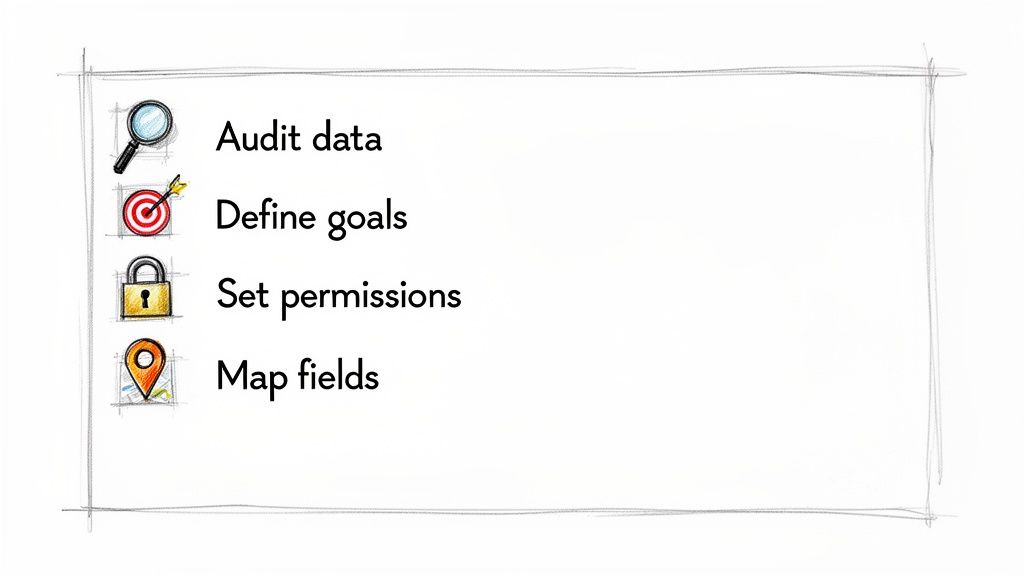
This is exactly what a true CRM-native tool is designed for. Implementation should be surprisingly simple. You can often start with a single, focused workflow, like connecting a specific buyer signal to a task that generates a ready-to-send email with one click.
The real magic is that this all happens inside the interface your reps already use all day, every day.
The goal of a native tool is to work with your team's existing habits, not force them to learn new ones. This approach slashes training time, reduces friction, and boosts the user adoption you need to get a real return on your investment.
Ready to turn your sales team into an execution powerhouse? See how marketbetter.ai builds an AI-powered task and email generator right into Salesforce and HubSpot to drive consistent, high-impact outreach. Get started with MarketBetter.
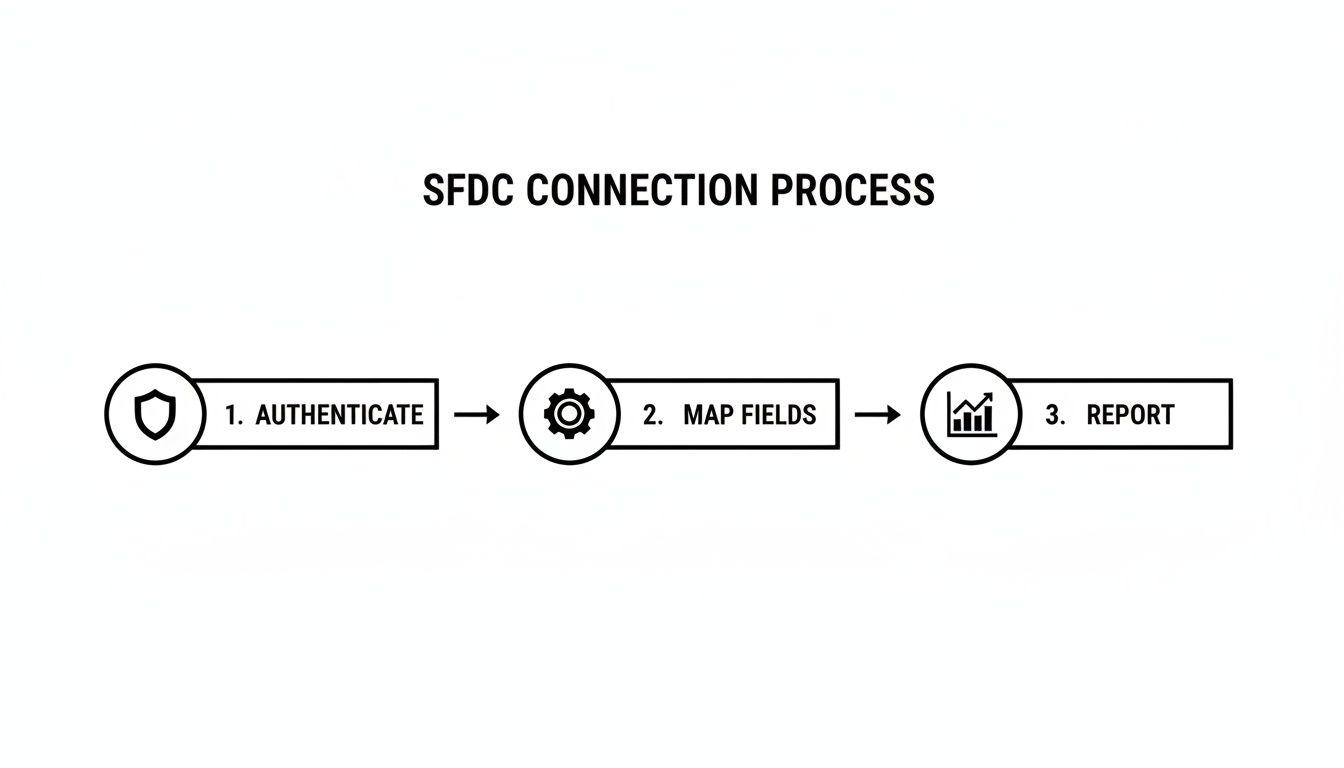 Each step builds on the last, making sure the data flowing into your reports is structured and reliable from the get-go.