3 posts tagged with "ai agents"

View All Tags

How to Automate Lead Research with Claude Code [Step-by-Step Tutorial]

· 6 min read

The average SDR spends 6 hours per week researching prospects. That's 6 hours of:

  • Googling company names
  • Scanning LinkedIn profiles
  • Reading news articles
  • Looking for pain points to reference

What if you could do all that in 30 seconds?

Claude Code—Anthropic's AI with tool use and code execution—can turn a prospect name into a complete research brief automatically. Here's exactly how to set it up.
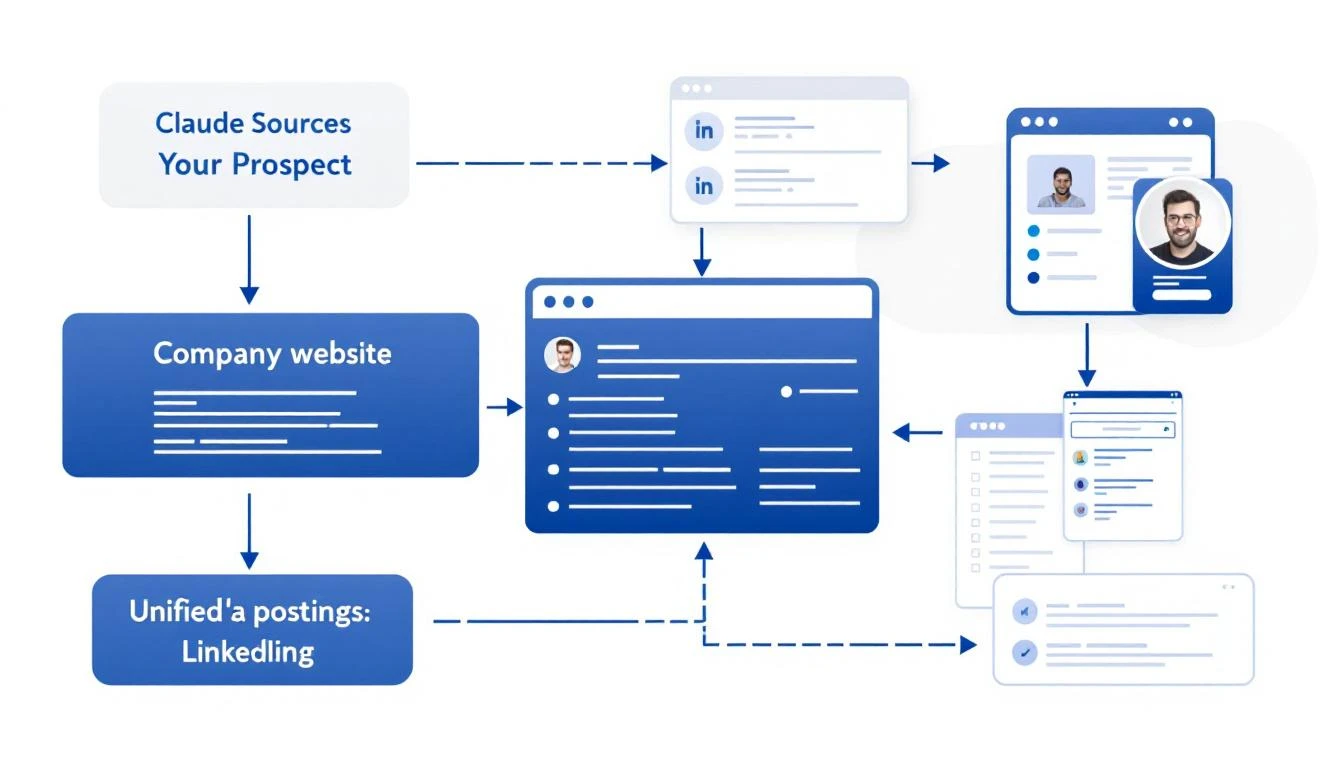
Claude Code researching prospects from multiple data sources

What Good Lead Research Actually Looks Like

Before we automate, let's define what we're building. A great prospect brief includes:

  1. Company Overview: What they do, company size, industry
  2. Recent News: Funding, product launches, leadership changes
  3. Tech Stack: What tools they already use (if visible)
  4. Pain Point Signals: Job postings, complaints, market trends
  5. Personalization Hooks: Specific details for your outreach

This used to take 10-15 minutes per prospect. Now it takes seconds.

The Claude Code Approach

Claude Code can:

  • Execute searches and aggregate results
  • Read web pages and extract key information
  • Structure unstructured data into useful formats
  • Reason about what matters for your use case

Here's a prompt template that generates complete prospect briefs:

Research this company for a B2B sales outreach:

**Company:** {{company_name}}
**Our Product:** AI-powered SDR platform that turns intent signals into pipeline

**Create a prospect brief with:**

1. **Company Overview**
- What they do (one sentence)
- Employee count and headquarters
- Industry and target market

2. **Recent Activity (Last 6 Months)**
- Funding or acquisitions
- Product launches
- Leadership changes
- Press coverage

3. **Sales-Relevant Signals**
- Are they hiring for SDRs, sales ops, or demand gen?
- Any complaints about lead quality or outbound efficiency?
- What CRM/sales stack do they use? (check job postings)

4. **Personalization Hooks**
- 3 specific details I can reference in an email
- Potential pain points based on their situation
- Suggested angle for outreach

5. **Recommended Next Step**
- Best channel to reach them (email, LinkedIn, phone)
- Suggested first message angle

Be specific. Use actual data, not generic statements.

Setting Up Automated Research

Option 1: OpenClaw + Claude (Always-On)

If you want research to run automatically when new leads come in:

# OpenClaw config
cron:
jobs:
- name: "New Lead Research"
schedule:
kind: every
everyMs: 900000 # Every 15 minutes
payload:
kind: agentTurn
message: |
Check HubSpot for contacts added in the last 15 minutes.
For each new contact, create a prospect brief and add it
to the contact notes field.

This runs in the background, enriching leads as they arrive.

Option 2: Claude Code CLI (On-Demand)

For manual research when you need it:

# Install Claude Code
npm install -g @anthropic-ai/claude-code

# Run research
claude-code research "Acme Corp"

Option 3: VS Code Extension

If you work in VS Code, Claude Code integrates directly:

  1. Highlight a company name
  2. Cmd+Shift+P → "Claude: Research Prospect"
  3. Get a brief in your sidebar

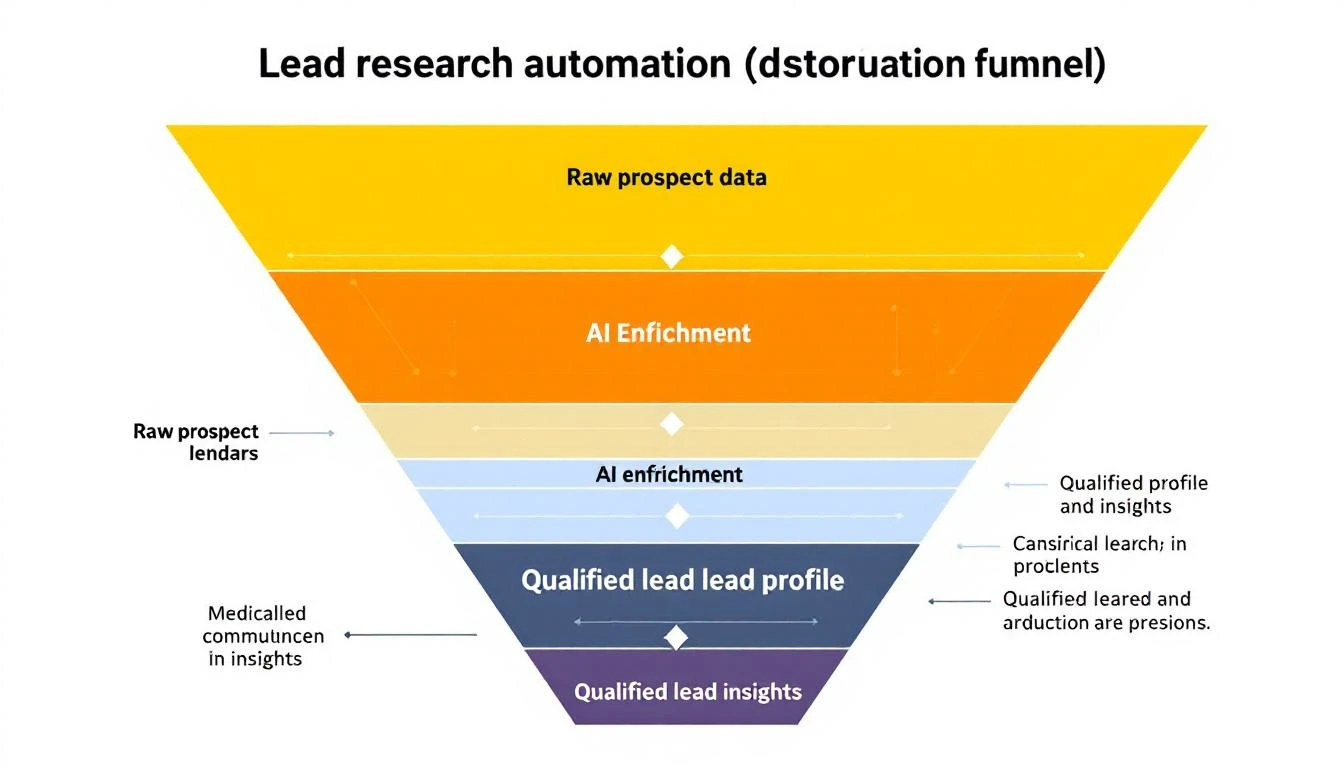
Lead research funnel: Raw data to enriched profile

Real Research Output Example

Here's what Claude Code actually produces for a real company:


Company: Hologram (hologram.io)

Overview: IoT connectivity platform providing global cellular for devices. ~150 employees, HQ in Chicago. Series B ($65M from Battery Ventures).

Recent Activity:

  • Feb 2026: Launched Hyper network for low-latency IoT
  • Jan 2026: Partnership with AWS IoT Core announced
  • Hiring: 3 open SDR roles, 2 demand gen positions

Sales Signals:

  • Job posting mentions "scaling outbound motion" and "improving lead quality"
  • Uses HubSpot (seen in job req), Outreach for sequences
  • Active on G2 responding to reviews (cares about buyer perception)

Personalization Hooks:

  1. Reference the Hyper launch: "Saw the Hyper network announcement—congrats"
  2. Note the hiring push: "Looks like you're scaling the SDR team"
  3. Connect to IoT/connectivity angle: "We work with several IoT companies..."

Recommended Approach: LinkedIn → Email sequence. Their team is active on LinkedIn. Reference specific content they've posted.


This took 15 seconds to generate. A human would need 10-15 minutes minimum.

Enrichment Sources Claude Code Can Access

When you give Claude Code research tasks, it can pull from:

SourceWhat It Finds
Company websiteProducts, pricing, team page
LinkedInEmployee count, org structure, recent posts
Job boardsHiring signals, tech stack clues
News sitesFunding, partnerships, launches
G2/CapterraReviews, complaints, competitor comparisons
CrunchbaseFunding history, investors, competitors

The key is structuring your prompt to tell Claude what matters for your specific outreach.

Advanced: Building a Research Pipeline

For high-volume prospecting, build a full pipeline:

[New Lead] 

[Basic Enrichment]
- Company size, industry
- Contact title, seniority

[ICP Scoring]
- Match against ideal customer profile
- Score 1-100

[Deep Research] (if score > 70)
- Full prospect brief
- Personalization hooks

[Routing]
- Hot leads → Slack alert + call queue
- Warm leads → Automated sequence
- Cold leads → Nurture list

Each step can be automated with Claude Code + OpenClaw.

Common Mistakes to Avoid

1. Researching Every Lead Equally

Not every lead deserves 10 minutes of research. Use basic enrichment to score first, then deep-dive on high-potential prospects only.

2. Ignoring Negative Signals

Good research includes disqualifying information. If a company just laid off their sales team, that's important context.

3. Stale Data

Information decays. Set up refresh cycles for long-nurture prospects.

4. Over-Personalizing

Mentioning 5 specific details in an email feels creepy. Pick the ONE most relevant hook.

Measuring Research Quality

Track these metrics:

  • Time per lead: Should drop from 10-15 min to under 1 min
  • Reply rates: Better research → better personalization → higher replies
  • Qualification accuracy: Are AI-scored leads actually converting?
  • Rep adoption: Is your team actually using the briefs?

The MarketBetter Advantage

MarketBetter does this automatically for every website visitor:

  1. Identify: Know which companies visit your site
  2. Enrich: Pull firmographic and technographic data
  3. Research: AI generates prospect briefs
  4. Prioritize: Score and route to the right rep
  5. Act: Get a daily playbook of exactly who to contact

No manual research required. No copy-pasting between tools.


Ready to automate your lead research? See how MarketBetter turns visitor identification into actionable prospect intelligence. Book a demo.

OpenAI Codex Mid-Turn Steering: The Killer Feature for GTM Teams [2026]

· 6 min read

When GPT-5.3-Codex dropped on February 5, 2026, everyone focused on the "25% faster" headline. But the real game-changer? Mid-turn steering.

This feature lets you redirect an AI agent while it's working—not after it finishes. For GTM teams running complex automation, this changes everything.

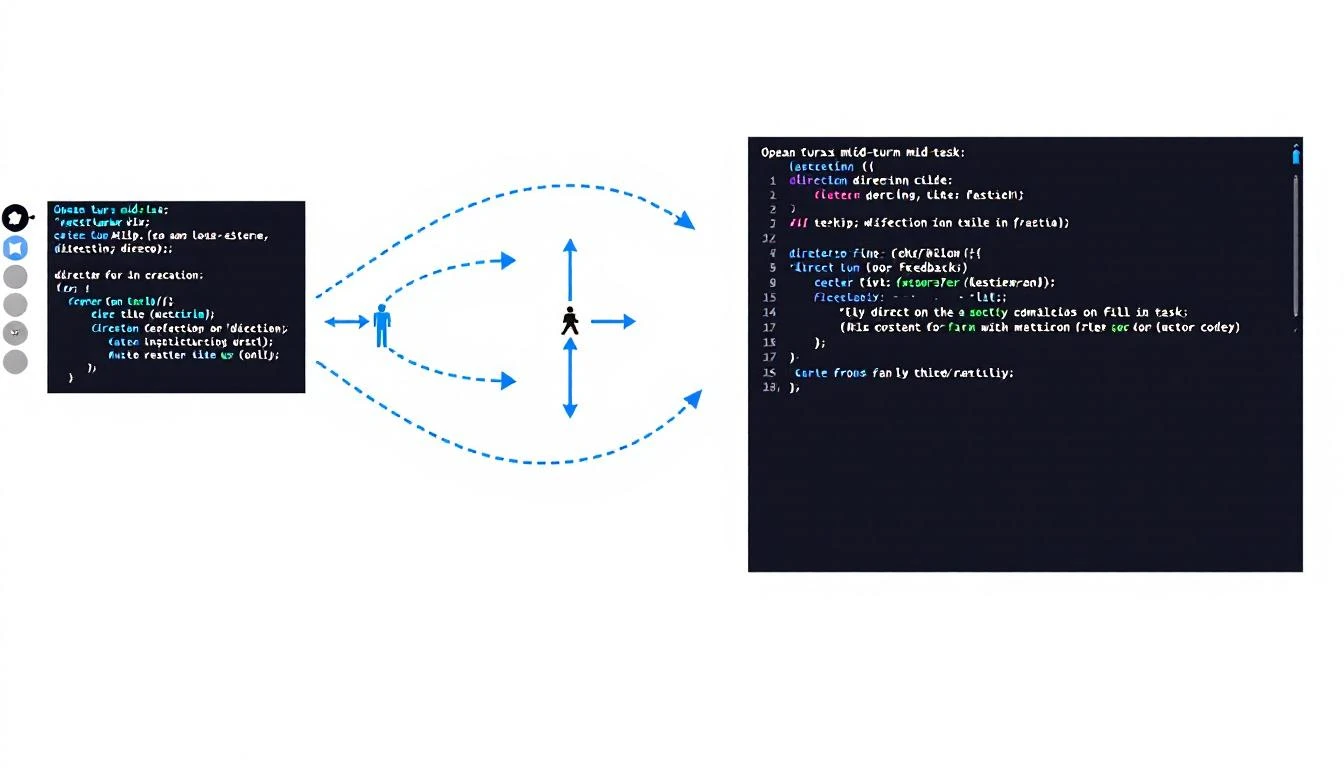
Codex mid-turn steering: Human directing AI mid-task

What is Mid-Turn Steering?

Traditionally, when you ask an AI to do something, you wait until it's done to give feedback. If it goes off track, you:

  1. Wait for completion
  2. Read the output
  3. Write a correction prompt
  4. Start over

Mid-turn steering breaks this pattern. You can intervene during execution:

You: Build a lead scoring model based on our HubSpot data

Codex: [starts working]
- Pulling contact fields...
- Analyzing conversion patterns...
- Building scoring criteria...

You: Actually, weight company size more heavily than title

Codex: [adjusts mid-task]
- Updating weight for company_size field...
- Recalculating score thresholds...
[continues with adjustment]

No restart. No lost work. Just a course correction.

Why This Matters for GTM

1. Complex Automation Doesn't Fail Silently

When building sales automation, you often don't know exactly what you want until you see the first attempt. Mid-turn steering lets you:

  • Watch the agent's approach in real-time
  • Correct misunderstandings immediately
  • Guide toward edge cases as they appear

Without this, a 20-minute automation task might need 3-4 full restarts to get right.

2. Better Collaboration with AI

Mid-turn steering makes AI feel less like a black box and more like a collaborator. You're not just prompting and praying—you're actively directing.

For sales leaders building complex workflows, this means:

  • Faster iteration cycles
  • More precise outputs
  • Higher confidence in automation

3. Reduced Token Waste

Every restart burns tokens. Mid-turn steering reduces:

  • Repeated context loading
  • Duplicate work
  • Prompt engineering overhead

For teams running Codex at scale, this adds up.

Human giving mid-task feedback with course correction

GTM Use Cases for Mid-Turn Steering

Building Custom Lead Scoring

Traditional approach:

  1. Ask Codex to build a lead score
  2. Wait 10 minutes
  3. Realize it weighted "email opened" too heavily
  4. Start over with clarification
  5. Wait another 10 minutes

With mid-turn steering:

  1. Ask Codex to build a lead score
  2. Watch it start weighting criteria
  3. "Wait—de-emphasize email opens, focus on website visits"
  4. Codex adjusts in real-time
  5. Get the right model in one pass

Generating Email Sequences

Traditional approach:

  1. "Write a 5-email nurture sequence"
  2. Wait for all 5 emails
  3. Email 3 is too salesy
  4. Restart or write complex follow-up prompt

With mid-turn steering:

  1. "Write a 5-email nurture sequence"
  2. After email 2: "Make these more educational, less pitch-focused"
  3. Codex adjusts emails 3-5 accordingly
  4. Done

Building Pipeline Dashboards

Traditional approach:

  1. "Build a pipeline dashboard showing X, Y, Z"
  2. Wait for completion
  3. Visualizations aren't quite right
  4. Describe changes in detail
  5. Hope it understands

With mid-turn steering:

  1. "Build a pipeline dashboard"
  2. See the chart types being chosen
  3. "Actually, use bar charts for that, not pie"
  4. Watch it switch mid-build
  5. "Add a filter for deal size"
  6. Done with all adjustments in one session

How to Use Mid-Turn Steering

In Codex CLI

# Start a task
codex run "Build a HubSpot integration that syncs new contacts"

# While it's running, type to intervene
> Also add error handling for rate limits
> Skip the logging for now, we'll add that later

In Codex Cloud (Web UI)

The Codex dashboard shows real-time execution. A sidebar lets you:

  • See what the agent is currently doing
  • Type interventions
  • Pause/resume execution
  • Save partial progress

Via API

const session = await codex.createSession({
task: "Build lead enrichment pipeline",
onProgress: (state) => console.log(state),
allowSteering: true
});

// Intervene mid-task
await session.steer("Use Apollo for enrichment instead of Clearbit");

Best Practices for Mid-Turn Steering

1. Let It Start Before Steering

Don't intervene in the first 10 seconds. Let Codex show its approach first—you might learn something.

2. Be Specific with Corrections

❌ "That's not quite right"
✅ "Use percentage instead of raw numbers for the conversion column"

3. Steer Early, Not Late

If you see it going the wrong direction, intervene immediately. Don't wait until it's 80% done.

4. Save Checkpoints

For complex tasks, tell Codex to checkpoint progress: "After each major step, commit and show me the current state"

This lets you roll back if steering doesn't work.

5. Don't Over-Steer

Every intervention has overhead. If you're steering every 30 seconds, your initial prompt probably wasn't clear enough.

Mid-Turn Steering vs. Other Approaches

ApproachProCon
Single promptFast for simple tasksNo correction possible
Chain of promptsMore controlContext lost between prompts
Agent loopsAutonomousHard to intervene
Mid-turn steeringBest of both worldsRequires Codex

Mid-turn steering gives you the autonomy of agents with the control of manual prompting.

Real Example: Building a Competitor Alert System

Here's a real session transcript (abbreviated):

Me: Build a system that alerts me when competitors publish new content

Codex: Starting. I'll:
1. Set up RSS feeds for competitor blogs
2. Create a daily digest
3. Send via email

Setting up RSS parser...

Me: Actually, send via Slack not email

Codex: Switching to Slack webhook...
Setting up #competitor-intel channel post...

Me: Also check their Twitter, not just blogs

Codex: Adding Twitter API integration...
Will monitor @Warmly_AI, @CommonRoom...

Me: Add @6sense too

Codex: Added. Continuing with alert formatting...

[5 minutes later]

Codex: Done. System checks hourly, posts to #competitor-intel
when new content detected.

That would have been 3-4 restarts without mid-turn steering.

Limitations to Know

1. Not All Tasks Support Steering

Some operations (like API calls mid-flight) can't be interrupted. Codex will tell you when steering isn't possible.

2. Token Cost Still Applies

Steering doesn't reduce total tokens—it just uses them more efficiently.

3. Requires Real-Time Attention

If you're not watching, you can't steer. For hands-off automation, traditional approaches might be better.

The Bottom Line

Mid-turn steering is Codex's competitive moat for complex GTM automation. It transforms AI from "prompt and pray" to "collaborative building."

For teams building:

  • Custom integrations
  • Complex workflows
  • Multi-step automation

This feature alone justifies using Codex over alternatives.


Want AI that works out of the box? MarketBetter combines visitor identification, automated playbooks, and AI-driven outreach—no prompting required. Book a demo.

OpenClaw + HubSpot: Build the Ultimate CRM Automation Stack [2026 Guide]

· 5 min read

Your CRM is only as good as the data inside it. And let's be honest—most CRMs are graveyards of stale contacts, forgotten deals, and "I'll update it later" promises that never happen.

What if your CRM updated itself?

That's exactly what happens when you connect OpenClaw—the open-source AI agent gateway—to HubSpot. You get an always-on AI assistant that monitors your pipeline, enriches contacts automatically, and alerts you before deals go cold.

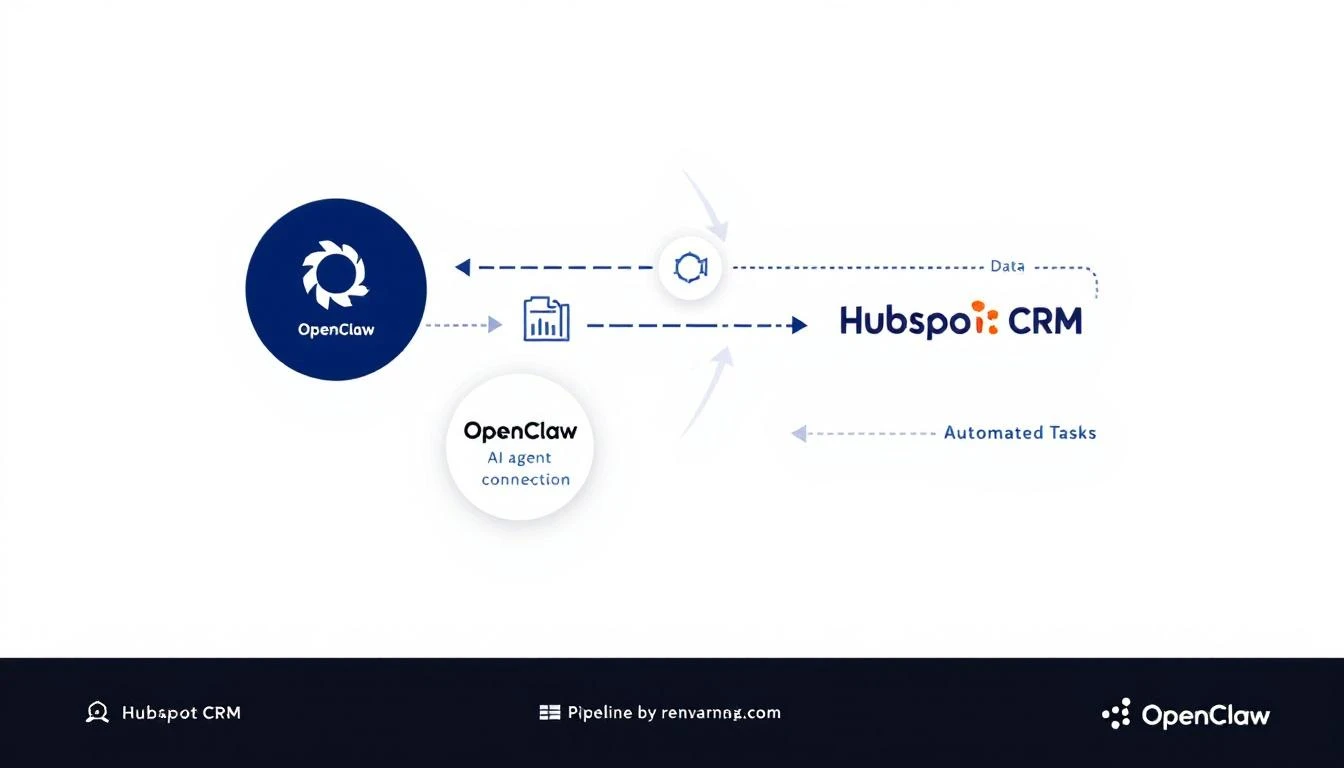
OpenClaw connecting to HubSpot CRM with automated data flows

Why Manual CRM Updates Are Killing Your Pipeline

The average SDR spends 28% of their week on administrative tasks. Most of that is CRM data entry:

  • Logging call notes
  • Updating deal stages
  • Adding contact information
  • Setting follow-up reminders

That's 11+ hours per week not selling.

Worse, when reps get busy (which is always), CRM hygiene drops. Deals sit in the wrong stages. Contact info goes stale. Follow-ups get missed.

The result? Pipeline visibility becomes a lie. Your forecast is based on outdated data, and winnable deals slip through the cracks.

What OpenClaw + HubSpot Actually Does

OpenClaw acts as a bridge between AI models (Claude, GPT-4, etc.) and your business tools. When connected to HubSpot, it can:

1. Auto-Enrich New Contacts

When a new contact hits HubSpot, OpenClaw can:

  • Research the contact's company
  • Find their LinkedIn profile
  • Pull recent news about their company
  • Add firmographic data (company size, industry, tech stack)

All without you touching the keyboard.

2. Monitor Deal Health

Set up cron jobs to check your pipeline daily:

  • Flag deals that haven't been updated in 7+ days
  • Alert you when a high-value deal goes silent
  • Summarize weekly pipeline changes

3. Auto-Log Meeting Notes

Connect your calendar and let OpenClaw:

  • Join meetings via transcript (Zoom, Gong, etc.)
  • Summarize key points
  • Update the HubSpot contact/deal record
  • Create follow-up tasks

4. Proactive Outreach Suggestions

Based on deal activity (or lack thereof), OpenClaw can:

  • Draft re-engagement emails
  • Suggest call scripts based on deal history
  • Recommend next best actions

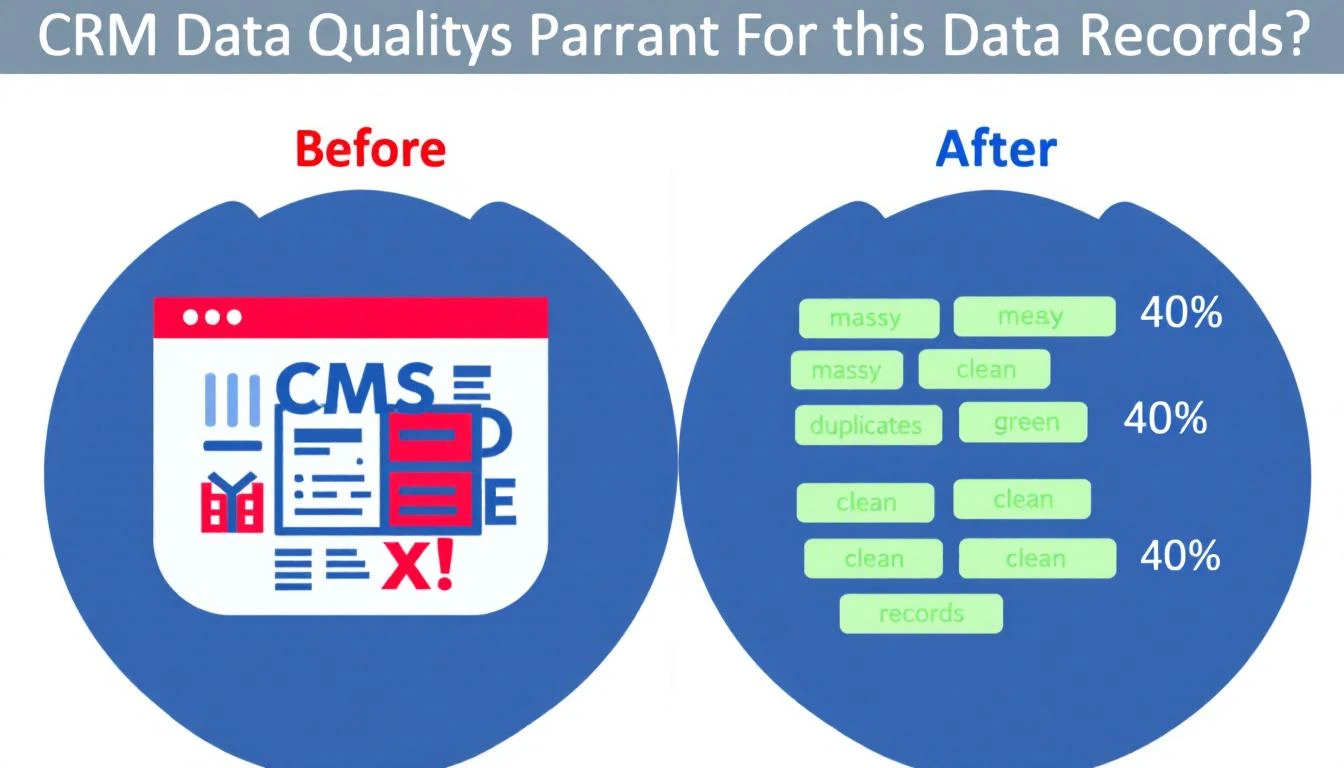
Before and after: Manual CRM entry vs AI-automated updates

Setting Up OpenClaw with HubSpot

Here's how to connect them (no code required for basic setups):

Step 1: Install OpenClaw

npx openclaw@latest init

Follow the prompts to configure your AI provider (Claude recommended for CRM tasks).

Step 2: Get Your HubSpot Private App Token

  1. Go to HubSpot → Settings → Integrations → Private Apps
  2. Create a new app with these scopes:
    • crm.objects.contacts.read
    • crm.objects.contacts.write
    • crm.objects.deals.read
    • crm.objects.deals.write
    • crm.objects.companies.read
  3. Copy the access token

Step 3: Configure OpenClaw

Add to your OpenClaw config:

# In your openclaw config
agents:
defaults:
model: claude-sonnet-4-20250514

plugins:
hubspot:
enabled: true
token: ${HUBSPOT_TOKEN}

Step 4: Create Your First Automation

Example: Daily pipeline health check that messages you via WhatsApp:

cron:
jobs:
- name: "Pipeline Health Check"
schedule:
kind: cron
expr: "0 9 * * 1-5" # 9am weekdays
payload:
kind: agentTurn
message: |
Check HubSpot for:
1. Deals stuck in same stage for 7+ days
2. Deals over $10K with no activity this week
3. Contacts added yesterday that need enrichment

Summarize findings and alert me if anything needs attention.

Real-World Use Cases

Use Case 1: Automatic Lead Scoring

When a new contact comes in, have OpenClaw:

  1. Research the company
  2. Check if they match your ICP
  3. Update the lead score field in HubSpot
  4. Route hot leads to your Slack channel

Use Case 2: Stale Deal Recovery

Set up a weekly scan for deals that have gone quiet:

  • If no activity in 14 days, draft a re-engagement email
  • If no response after outreach, suggest moving to "Nurture"
  • If closed-lost, add to a win-back sequence after 90 days

Use Case 3: Meeting Prep Automation

Before any call, have OpenClaw:

  • Pull the contact's full history from HubSpot
  • Research recent company news
  • Summarize previous touchpoints
  • Suggest talking points

OpenClaw vs. Native HubSpot AI

HubSpot has its own AI features now. Here's how they compare:

FeatureHubSpot AIOpenClaw + HubSpot
PriceIncluded in paid plansFree (open source)
CustomizationLimited to HubSpot's featuresUnlimited (any AI model)
Cross-platformHubSpot onlyWorks with any CRM, messaging, calendar
Proactive alertsBasicFully customizable
Model choiceHubSpot's modelsClaude, GPT-4, Llama, etc.

The key difference: OpenClaw lets you build exactly what you need, while HubSpot AI gives you what HubSpot thinks you need.

Best Practices for CRM Automation

1. Start Small Don't automate everything at once. Start with one pain point (e.g., stale deal alerts) and expand from there.

2. Keep Humans in the Loop AI should suggest, not decide. Have agents create draft emails for your approval, not send them automatically.

3. Audit Regularly Review AI-updated fields monthly. Catch errors before they compound.

4. Document Your Automations Future you (or your replacement) will thank you. Keep a log of what agents do and why.

The Compound Effect of CRM Automation

One automated task saves 5 minutes. Multiply by 50 contacts per week, and you've saved 4 hours.

Now add:

  • Auto-enrichment (saves research time)
  • Deal monitoring (catches slipping deals early)
  • Meeting prep (better conversations)
  • Follow-up automation (nothing falls through cracks)

That's not 4 hours saved—that's a fundamentally different relationship with your CRM. It goes from a chore to a superpower.

Getting Started Today

  1. Install OpenClaw: docs.openclaw.ai
  2. Connect HubSpot: Use a Private App token
  3. Start with one automation: Stale deal alerts are the easiest win
  4. Iterate: Add more automations as you see what works

The best part? OpenClaw is free and open source. You're not adding another $500/month tool to your stack—you're building on infrastructure you control.


Want to see AI-powered SDR workflows in action? MarketBetter combines visitor identification, automated playbooks, and AI-driven outreach in one platform. Book a demo to see how it works.