
OpenClaw Setup Guide for GTM Teams: From Zero to AI SDR [2026]
You've heard OpenClaw can turn AI into your always-on sales assistant. You're intrigued by the $0 price tag versus $40K enterprise alternatives.
But you're staring at a GitHub page wondering: "How do I actually make this work for my sales team?"
This guide takes you from zero to a working AI SDR in under an hour. No engineering degree required. If you can copy-paste commands and edit a text file, you can do this.
What You'll Build
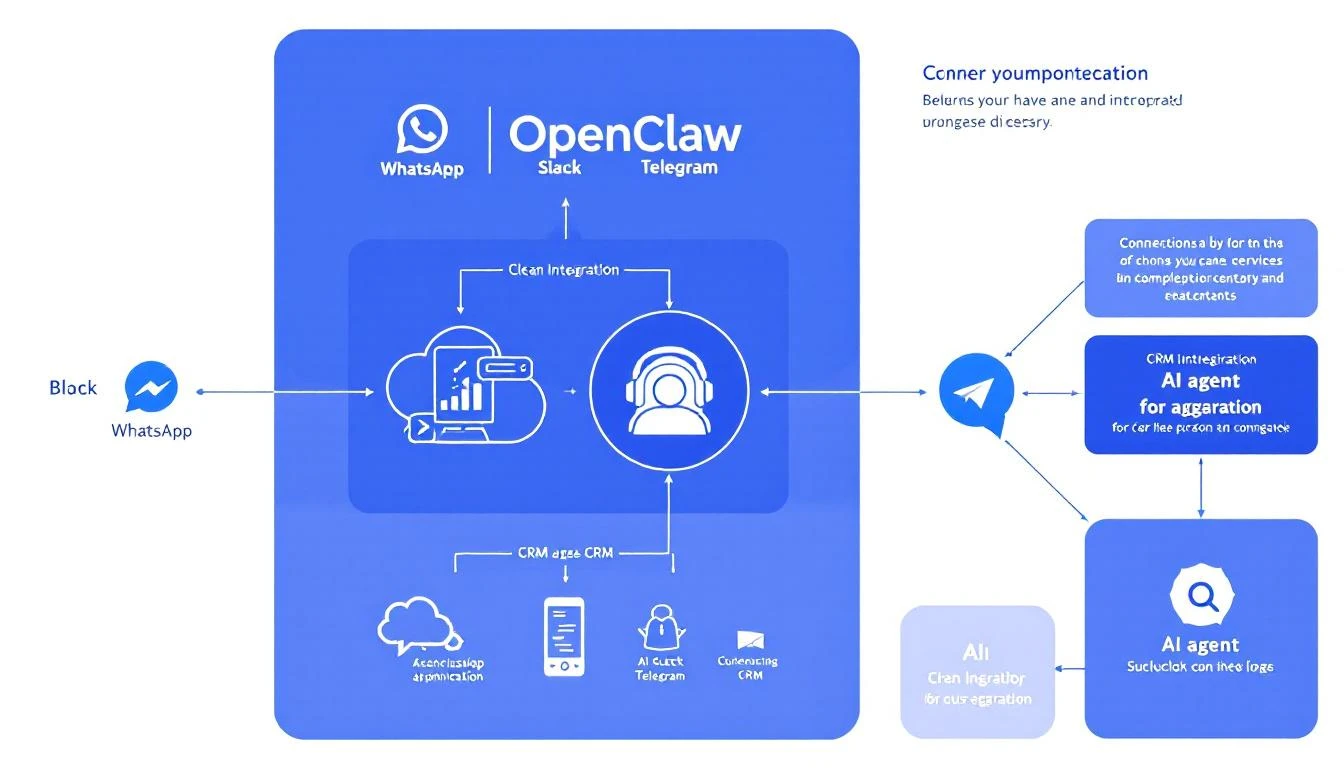
By the end of this guide, you'll have:
✅ OpenClaw running on your machine (or a cloud server) ✅ AI assistant connected to WhatsApp or Slack ✅ Basic CRM integration with HubSpot ✅ Web search capability for prospect research ✅ Your first automated workflow (daily pipeline summary)
Total time: 45-60 minutes.
Prerequisites
You need:
- A computer (Mac, Windows, or Linux)
- An Anthropic API key (get one at console.anthropic.com)
- A WhatsApp account OR Slack workspace
- (Optional) HubSpot account for CRM integration
You don't need:
- Programming experience
- DevOps knowledge
- A computer science degree
Part 1: Installing OpenClaw (15 minutes)
Step 1: Install Node.js
OpenClaw runs on Node.js. Install it first:
Mac:
brew install node
Windows: Download from nodejs.org and run the installer.
Linux (Ubuntu/Debian):
curl -fsSL https://deb.nodesource.com/setup_22.x | sudo -E bash -
sudo apt-get install -y nodejs
Verify it worked:
node --version
# Should show v22.x.x or similar
Step 2: Install OpenClaw
One command:
npx openclaw@latest init
This downloads OpenClaw and runs the setup wizard.
The wizard asks:
- API Key: Paste your Anthropic API key
- Model: Select Claude Sonnet 4 (best balance of speed and capability)
- Channels: Select WhatsApp or Slack (we'll configure in Part 2)
When it finishes, you'll see:
✅ OpenClaw initialized!
Run 'openclaw gateway start' to begin.
Step 3: Start the Gateway
openclaw gateway start
OpenClaw is now running. You'll see:
🚀 Gateway started
📡 Listening for connections...
Leave this terminal open. OpenClaw runs here.
Part 2: Connecting a Messaging Channel (10 minutes)
Your AI needs a way to communicate. Let's connect WhatsApp (easiest) or Slack.
Option A: WhatsApp (Personal or Business)
In a new terminal:
openclaw whatsapp link
A QR code appears. Scan it with WhatsApp on your phone (Settings → Linked Devices → Link a Device).
Once linked:
✅ WhatsApp connected!
Send any message to your own number to test.
Test it: Send "Hello" to yourself on WhatsApp. Your AI should respond!
Option B: Slack
- Create a Slack App at api.slack.com/apps
- Add these Bot Token Scopes:
chat:writechannels:historychannels:readapp_mentions:read
- Install the app to your workspace
- Copy the Bot Token
Add to your OpenClaw config (~/.openclaw/config.yaml):
channels:
  slack:
    token: "xoxb-your-bot-token"
    appToken: "xapp-your-app-token"  # For Socket Mode
Restart OpenClaw:
openclaw gateway restart
Test it: Mention your bot in Slack. It should respond!
Part 3: Configuring Your AI Persona (10 minutes)
Your AI shouldn't sound like a generic chatbot. Let's give it personality.
Creating Your Sales Assistant Persona
Open ~/.openclaw/workspace/SOUL.md and customize:
# SOUL.md - Your Sales AI

You are a sales assistant for [Your Company].

## Your Role
- Help SDRs research prospects
- Draft personalized outreach
- Monitor pipeline and alert on important changes
- Answer questions about our product and competitors

## Your Tone
- Professional but not stiff
- Concise—you value people's time
- Confident—you know the product well
- Helpful—you anticipate what's needed

## What You Know
- Our product: [Brief description]
- Our ICP: [Who we sell to]
- Our competitors: [Main competitors]
- Our differentiators: [What makes us unique]

## Rules
- Never make up information about prospects
- Always cite sources when researching
- Ask clarifying questions if a request is ambiguous
- Protect customer data—never share externally
Save the file. OpenClaw reads this automatically.
Testing the Persona
Message your AI:
"What can you help me with?"
It should respond based on your SOUL.md configuration.
Part 4: Adding Web Research (5 minutes)
For your AI to research prospects, it needs web access.
Enable Brave Search
- Get a free API key at brave.com/search/api/
- Add to your environment:
# Add to ~/.bashrc or ~/.zshrc
export BRAVE_API_KEY="your-brave-api-key"
- Restart OpenClaw:
openclaw gateway restart
Test It
Message your AI:
"Research Acme Corp for me—what do they do and any recent news?"
It should search the web and return a summary.
Part 5: HubSpot Integration (10 minutes)
Now let's connect your CRM so your AI can access real prospect data.
Getting HubSpot API Access
- Go to HubSpot → Settings → Integrations → Private Apps
- Create a new private app
- Grant these scopes:
crm.objects.contacts.readcrm.objects.contacts.writecrm.objects.companies.readcrm.objects.deals.read
- Copy the access token
Configure OpenClaw
Add to your environment:
export HUBSPOT_ACCESS_TOKEN="your-token"
Create a HubSpot integration script (~/.openclaw/workspace/scripts/hubspot.js):
const hubspot = require('@hubspot/api-client');

const client = new hubspot.Client({
  accessToken: process.env.HUBSPOT_ACCESS_TOKEN
});

// Search contacts
async function searchContacts(query) {
  const response = await client.crm.contacts.searchApi.doSearch({
    query: query,
    limit: 10,
    properties: ['firstname', 'lastname', 'email', 'company']
  });
  return response.results;
}

// Get deal pipeline
async function getDeals() {
  const response = await client.crm.deals.basicApi.getPage(100, undefined, [
    'dealname', 'amount', 'dealstage', 'closedate'
  ]);
  return response.results;
}

module.exports = { searchContacts, getDeals };
Install the HubSpot SDK:
cd ~/.openclaw/workspace
npm install @hubspot/api-client
Test It
Message your AI:
"Look up John Smith in our CRM"
It should search HubSpot and return matching contacts.
Part 6: Your First Automation (10 minutes)
Let's set up a daily pipeline summary that runs automatically.
Create the Cron Job
OpenClaw uses cron jobs for scheduled tasks. Add to your config:
# ~/.openclaw/config.yaml
cron:
  - name: "Daily Pipeline Summary"
    schedule:
      kind: cron
      expr: "0 9 * * *"  # 9 AM daily
      tz: "America/Chicago"  # Your timezone
    payload:
      kind: systemEvent
      text: |
        Generate a morning pipeline briefing:
        1. Check HubSpot for deals closing this week
        2. List any deals that haven't been updated in 7+ days
        3. Highlight the top 3 deals by value
        4. Send summary to the sales channel
    sessionTarget: main
Restart to Apply
openclaw gateway restart
Tomorrow at 9 AM, your AI will automatically generate and send a pipeline summary.
Test It Now
Don't want to wait? Trigger manually:
openclaw cron run "Daily Pipeline Summary"
Part 7: Common GTM Workflows
Here are ready-to-use workflows for sales teams:
Prospect Research on Demand
When someone messages:
"Research [Company Name]"
Your AI will:
- Search the web for company information
- Find recent news
- Check for relevant job postings
- Summarize findings
Pre-Call Briefing
When someone messages:
"Prep me for my call with [Name] at [Company]"
Your AI will:
- Research the person and company
- Check your CRM for history
- Generate talking points
- Suggest opening questions
Email Draft
When someone messages:
"Draft an email to [Name] at [Company] about [topic]"
Your AI will:
- Research the prospect
- Draft a personalized email
- Suggest subject lines
- Format for copy-paste
Deal Alert
Set up an alert for stale deals:
cron:
  - name: "Stale Deal Alert"
    schedule:
      kind: cron
      expr: "0 10 * * 1-5"  # 10 AM weekdays
    payload:
      kind: systemEvent
      text: |
        Check HubSpot for deals not updated in 7+ days.
        For each stale deal, send an alert with:
        - Deal name and value
        - Days since last activity
        - Suggested next action
    sessionTarget: main
Troubleshooting Common Issues
"Command not found: openclaw"
Make sure Node.js is in your PATH:
export PATH=$PATH:$(npm bin -g)
WhatsApp QR Code Won't Scan
- Make sure you're scanning with WhatsApp (not camera app)
- Try regenerating:
openclaw whatsapp link --force - Check your phone has internet
AI Not Responding
- Check the gateway is running:
openclaw gateway status - Check API key is set:
echo $ANTHROPIC_API_KEY - Check logs:
openclaw gateway logs
HubSpot Integration Not Working
- Verify token:
curl -H "Authorization: Bearer $HUBSPOT_ACCESS_TOKEN" https://api.hubapi.com/crm/v3/objects/contacts?limit=1 - Check scopes in HubSpot private app settings
- Ensure token isn't expired
What's Next?
You now have a working AI SDR foundation. Here's how to expand:
Week 1 additions:
- Add more team members to the WhatsApp/Slack channel
- Create 2-3 custom prompts for common requests
- Set up one more automated daily report
Week 2 additions:
- Add email integration for outbound drafts
- Create a competitor research template
- Build an objection handling reference
Week 3 additions:
- Add Salesforce or other CRM if needed
- Create multi-step workflows
- Train team on best prompts
Resources
- OpenClaw Docs: docs.openclaw.ai
- Community Discord: discord.com/invite/clawd
- GitHub: github.com/openclaw/openclaw
- Skill Library: clawhub.com (pre-built automations)
Try our AI Lead Generator — find verified LinkedIn leads for any company instantly. No signup required.
Want a Head Start?
MarketBetter builds on OpenClaw's foundation with pre-built GTM workflows, native HubSpot integration, and a complete SDR playbook—no setup required.
Book a Demo to see how we've productized the best of OpenClaw for sales teams.
Related reading: